電車ベクトル (Train Vector): The Hardware

Short overview

This is the HW description of the 電車ベクトル (Train Vector) project I described in this overview.

The main job of the hardware is to retrieve and process the signal direct from the motor, so that it can be used by the Arduino’s analogue input. The Arduino then does the magic and controls 4 LEDs (2 for each direction). The hardware will also have some additional features, so I can send out 2 more signals as a future option and also expose the I2C and TX/RX lines of the Arduino. There will also be a future option to control the brightness of the LEDs via PWM, controlled by a variable resistor or light (LDR). All this has to fit on a very small PCB, using the typical brick size.

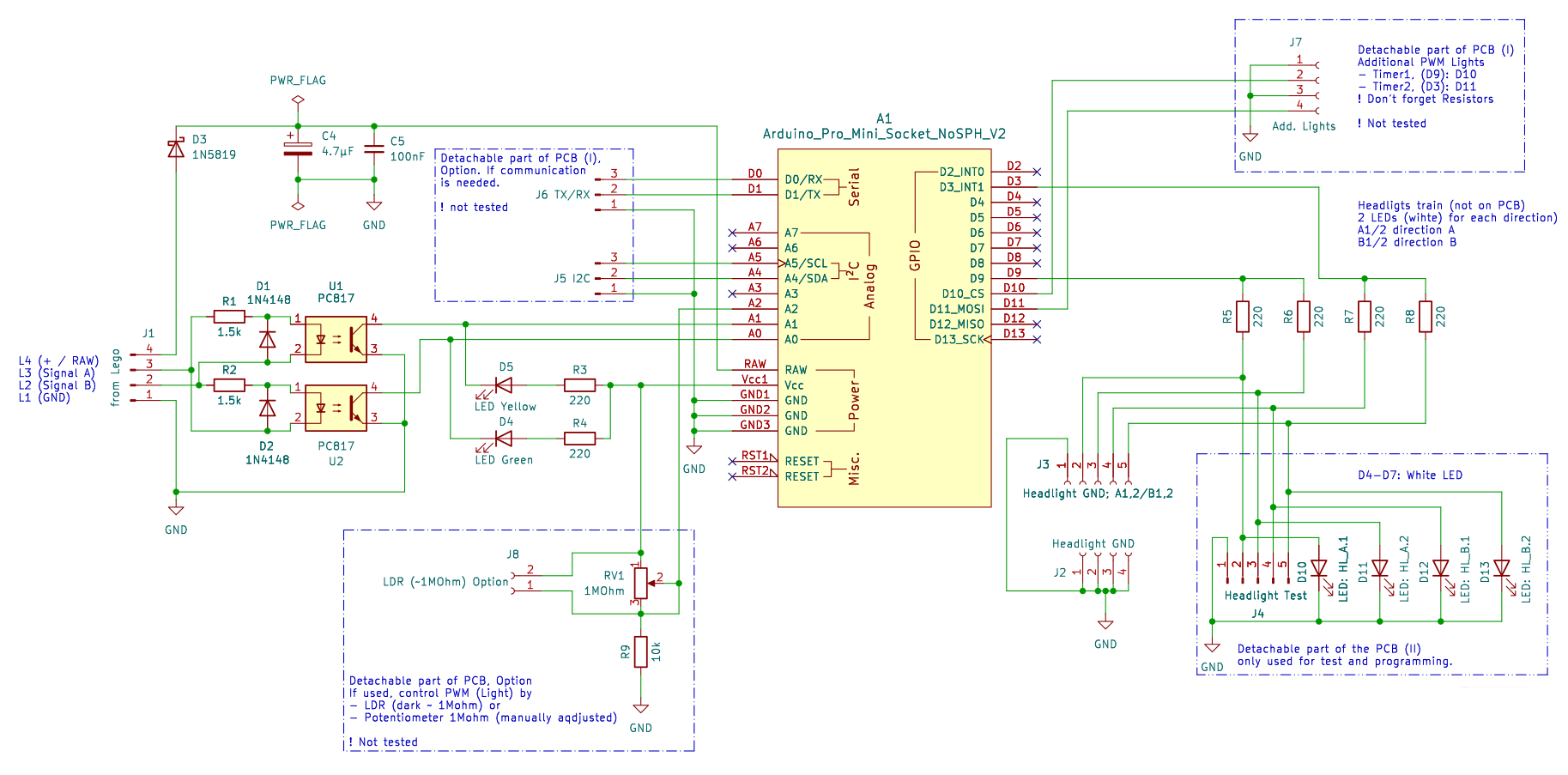
The schematic is built around these main blocks:

  • input signal processing
  • Arduino Pro Mini 5V as controller, also providing the 5V needed
  • output section for the headlights
  • test circuit
  • future options
0004-DenshaBekutoru_v0.2_schematics

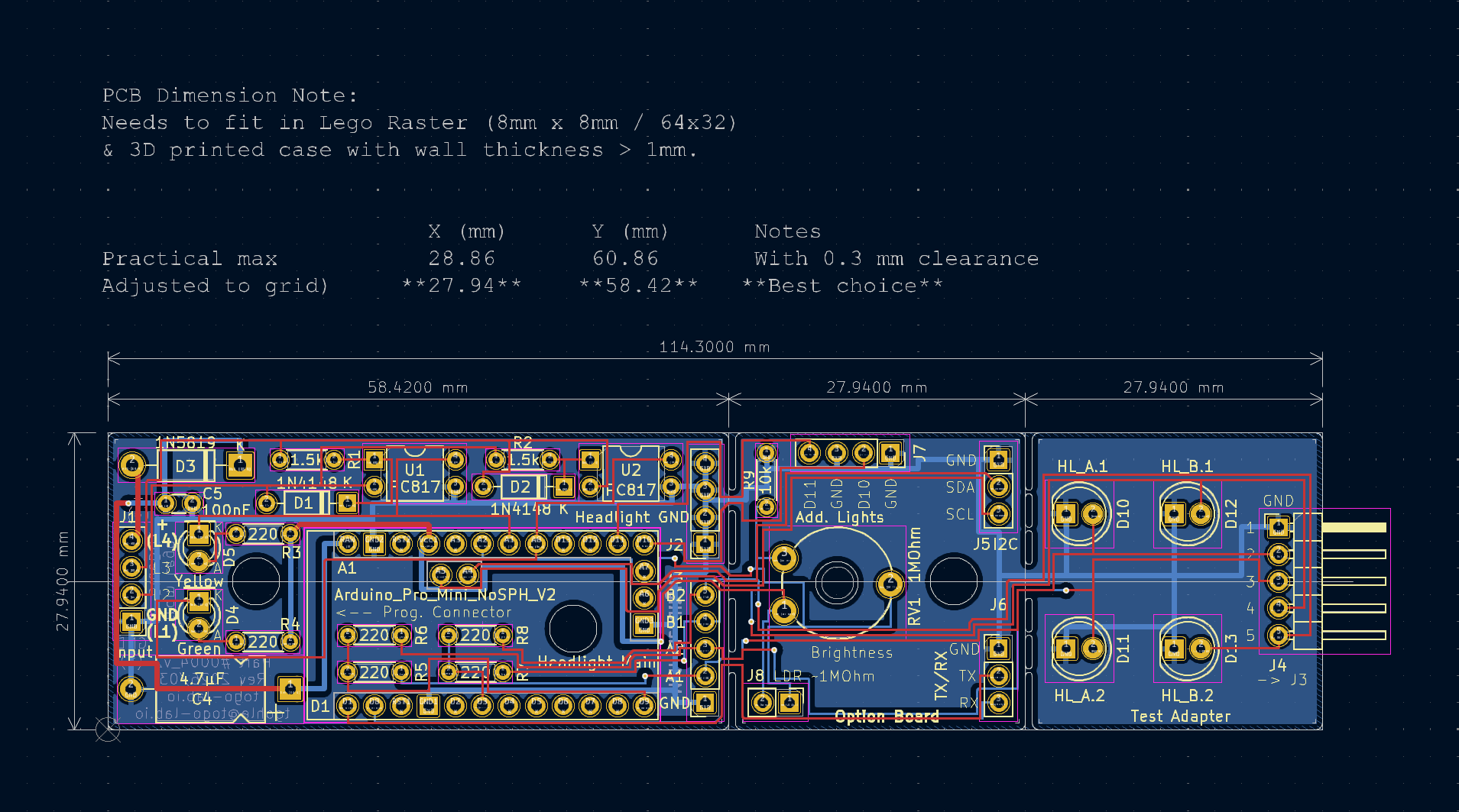
The PCB is split into 3 sections

  • signal processing and controller board / section
  • future options (light PWM and communication) section
  • test circuit section

All details, including KiCad files, you will find in the ToGo-Lab Gitea.

Input signal processing

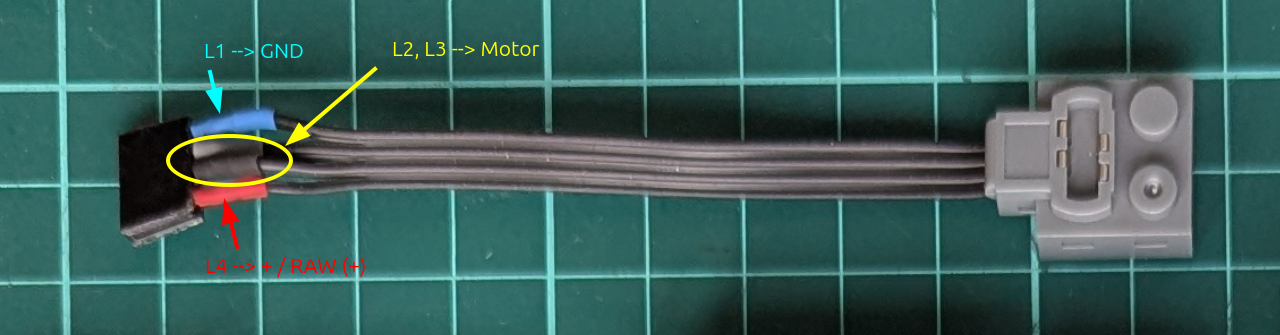
To get the signal from the brick-type motor or controller, I adapted this brick wire. In the picture you will see where the supply voltage, ground, and the motor wires are located. This connects to J1 in the schematic.

0004-DenshaBekutoru_v0.2_Connector

The input side reads the motor-related signals and prepares them for the controller. Because this is taken directly from the motor via J1, the signal is neither clean logic nor directly usable by the Arduino analogue inputs. It comes with switching noise, polarity changes, and inductive effects. Also, the voltage is too high to be properly handled later by the analogue inputs.

In the schematic, the parts doing this are: R1, R2, D1, D2 (input protection for the LEDs in the optocouplers) and U1, U2 = PC817 optocouplers.

To keep the controller side safer and cleaner, I used two isolated input channels with PC817 optocouplers (that was also the reason why I built a small tester for optocouplers). These optocouplers will act as rectifiers due to the polarity change (J1-3 and J1-4).

R3 and R4 together with D4 and D5 are used for pull-up, signalling (also for debugging), and of course to deliver voltage to the phototransistor in the optocoupler.

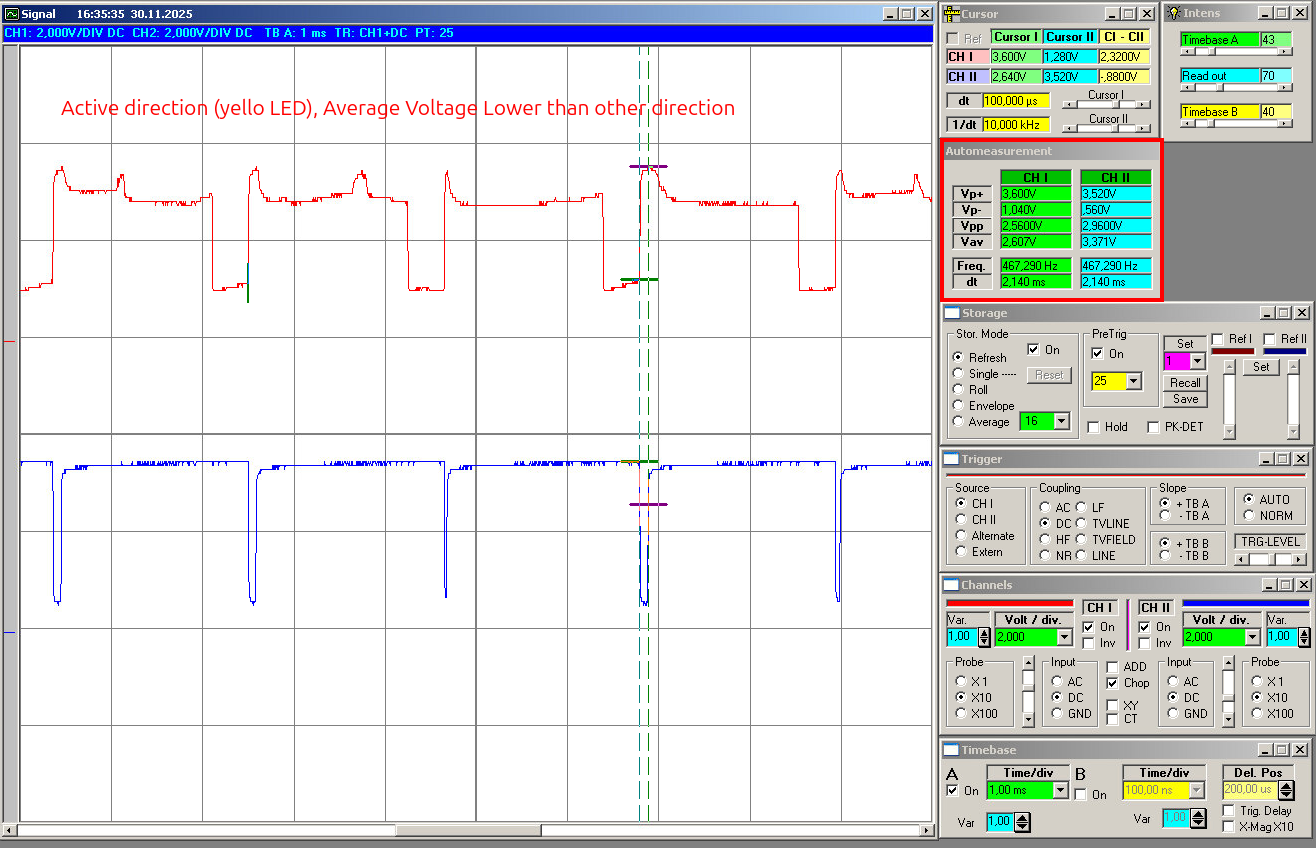
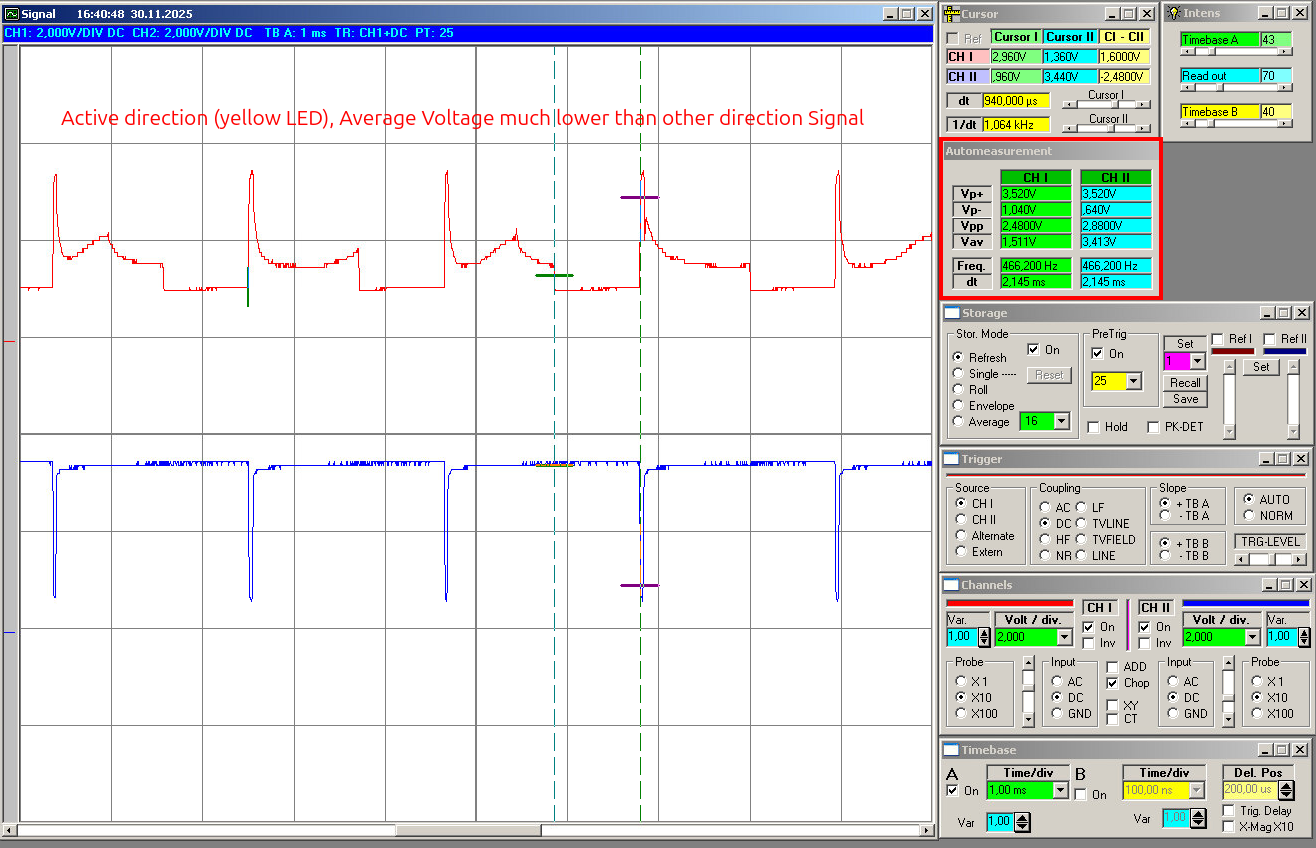
The signals will at the analoge inputs will show like this (slow, mid power, as example):

Arduino Pro Mini 5V as controller

For the controller I used an Arduino Pro Mini 5V / 16 MHz. It is small enough, I have reset logic on it, and also a power supply, so I can use the voltage directly from the remote controller. The on-board power supply will also be used to feed the optocouplers.

The Pro Mini is small, cheap, easy to replace and I understand how to program it because my programming skills are limited, I am more the HW guy, but feel free to use your own prefered µC. It is also more than powerful enough for this job and has everything needed to do analogue measurement and drive some LEDs. Another advantage is that the Pro Mini keeps the design easy to reproduce later for a DIY kit. No special programmer or unusual module is needed.

Output, future options, and test section

On the output side I used Arduino pins D3 and D9 for the two direction outputs. I used D3 and D9 because both pins support hardware PWM. The current version mainly uses them as normal outputs, but this keeps the option open for later LED dimming and other light-control functions without changing the hardware.

At the moment it is not tested; the basic function is only on/off switching of the headlights according to direction. But I wanted to keep the option open to dim the LEDs later. That could be useful for a more realistic light level, different train setups, or later expansion ideas.

Each direction drives two white LEDs in parallel, with each LED (D10, D11, D12, D13) having its own series resistor (R5, R6, R7, R8).

The future options are PWM control by resistor (RV1 and R9). You can replace RV1 with an LDR. There are also connectors for communication: I2C and TX/RX and 2 extra digital outputs to drive LEDs.

The LEDs later will be the ones in the train, so I placed the LEDs you see in the schematic on the test part of the PCB. To connect them from the mainboard I added the connectors J2 and J3.

Main PCB

The main PCB contains the complete working circuit:

  • motor-side input connection
  • isolated signal processing
  • Arduino Pro Mini socket
  • main headlight outputs
  • basic support parts

This is the board that matters. If somebody only wants the core function, this is the section that needs to work. You can detach the future options part and also the test part.

The layout was done with a small footprint in mind, because the board is intended to sit inside a brick-built locomotive, where space is always limited.

0004-DenshaBekutoru_v0.2_PCB

Additional detachable section

There is also an additional detachable PCB section. This part is not required for the core function, but it gives room for expansion without changing the main board concept too much. In the current design this includes optional extra light outputs and an option for brightness control, for example via LDR or potentiometer. This part also expose the pins for communication, I2C and TX/RX.

Test section

I also included a small test section on the PCB. This is simply practical. For a board like this, bring-up is much easier if basic functions can be checked directly on the board before everything is installed in a locomotive. The test section helps to verify that the direction outputs behave as expected and that the board is alive before going into real use. Before installing it, you can cut this away easily.

電車ベクトル (Train Vector): Project Overview and Current Status

What this project does

電車ベクトル (“Densha Bekutoru” / Train Vector) is a small board for LEGO, BlueBrixx, or similar locomotives built from bricks. Its job is to detect the current driving direction and switch the front and rear lights (2 white LEDs for each direction) to match.

That is the whole point of the project: the train changes direction, and the lights should follow automatically. They also stay on if the train stops; only when the direction changes do the lights switch to the correct direction.

This is Project No. 0004 for my Togo-Lab hobby / side project and the first “full-blown” one, meaning the result should be a DIY kit ready for everybody to use.

You will find the project files (schematics, PCB, controller software) in my Git: https://gitea.togo-lab.io/tgohle/0004-DenshaBekutoru

Why detecting the direction from motor input is not as simple as it sounds

In theory, it should be easy: just look at the motor polarity, add a simple state machine in hardware or software, and done. But in reality it is not that simple.

The motor in such setups is driven by an H-bridge circuit to deliver different power levels = different resulting speeds. Therefore, the signal on the motor lines is not a nice, stable DC level. You get switching effects, noise, and inductive spikes from the motor. Depending on the controller, load, and wiring, the signal can look pretty messy.

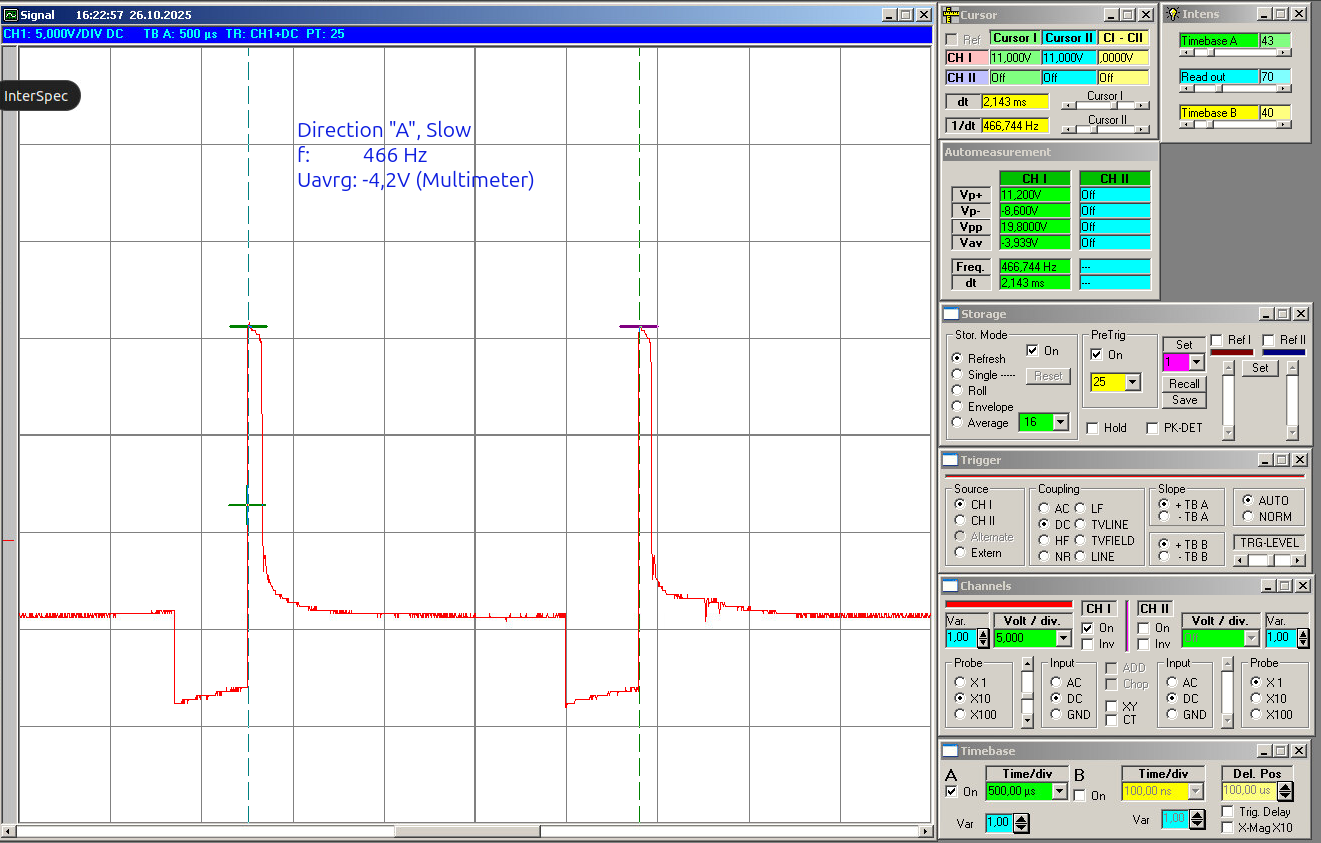
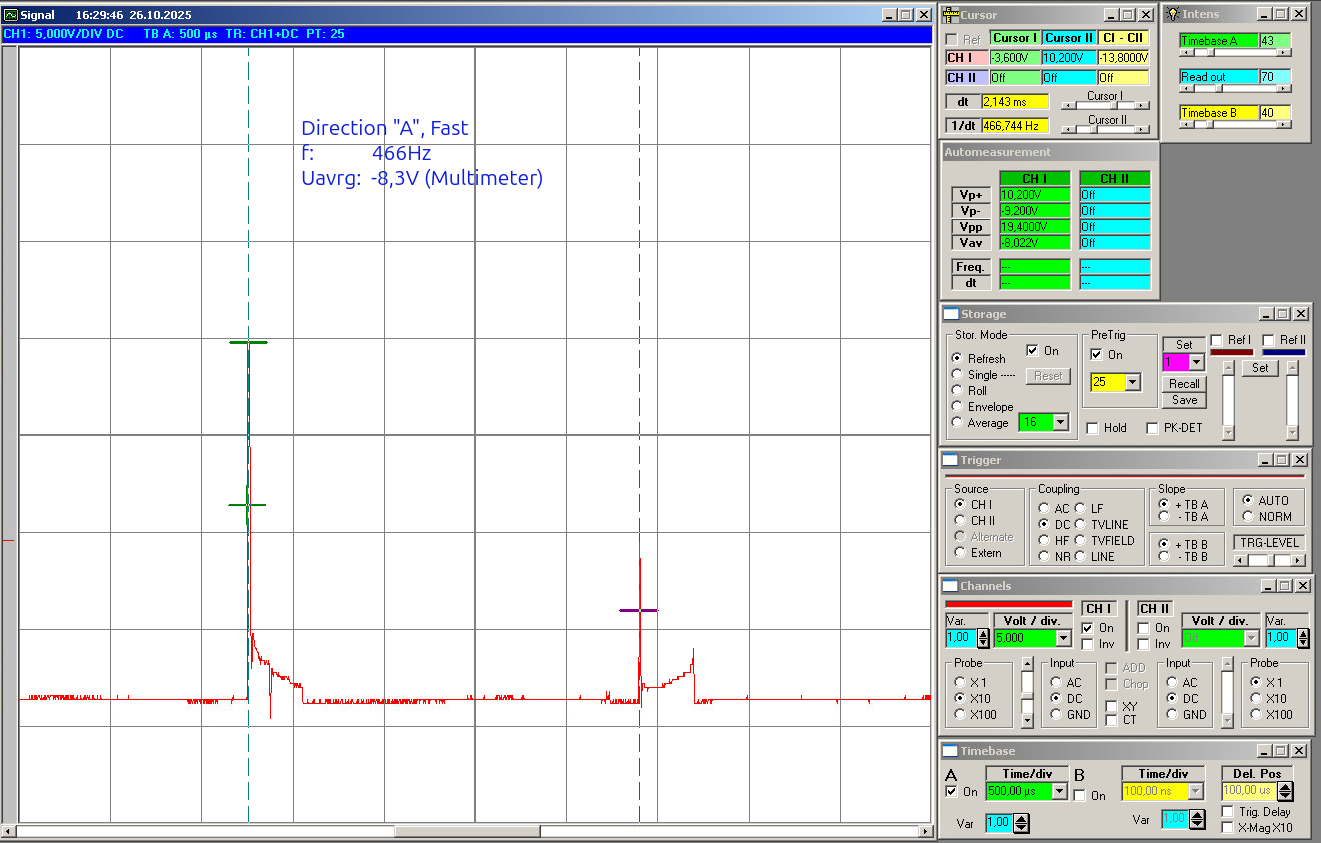
As an example, the following pictures are oscilloscope readings for one direction, let’s say direction “A”.

minimum power (slow speed):

20251026_Direction_A-Slow

maximum power (high speed):

20251026_Direction-A-Fast

You will notice the noise and, making the problem even worse, the inductive voltage, so you get reverse voltage as well. Simply installing an LED and resistor would result in flickering in each direction, with the level depending on speed. But this is of course not the right thing for a headlight.

So the challenge is not just detecting a direction once and using a state machine. The challenge is to sense the direction only from motor voltage and get rid of flickering, inductive voltages, and reactions to every little disturbance.

The current approach I use

My idea was to use two isolated input channels via optocouplers and a small controller (Arduino Pro Mini 5V type) to evaluate the motor-side signals. This should be small enough to fit the other constraint as well: the small footprint / volume, because this will be installed in the train, meaning there is very little space, and it needs to match the size of typical bricks.

On the software side, I did not go for a super simple “read once and switch” solution. The firmware works with averaging, calibration, and hysteresis so that short spikes or unstable transitions do not immediately flip the detected direction.

I hope this will make it also usable for a wide range of controllers, from low-cost Chinese controllers up to the official ones.

Current status

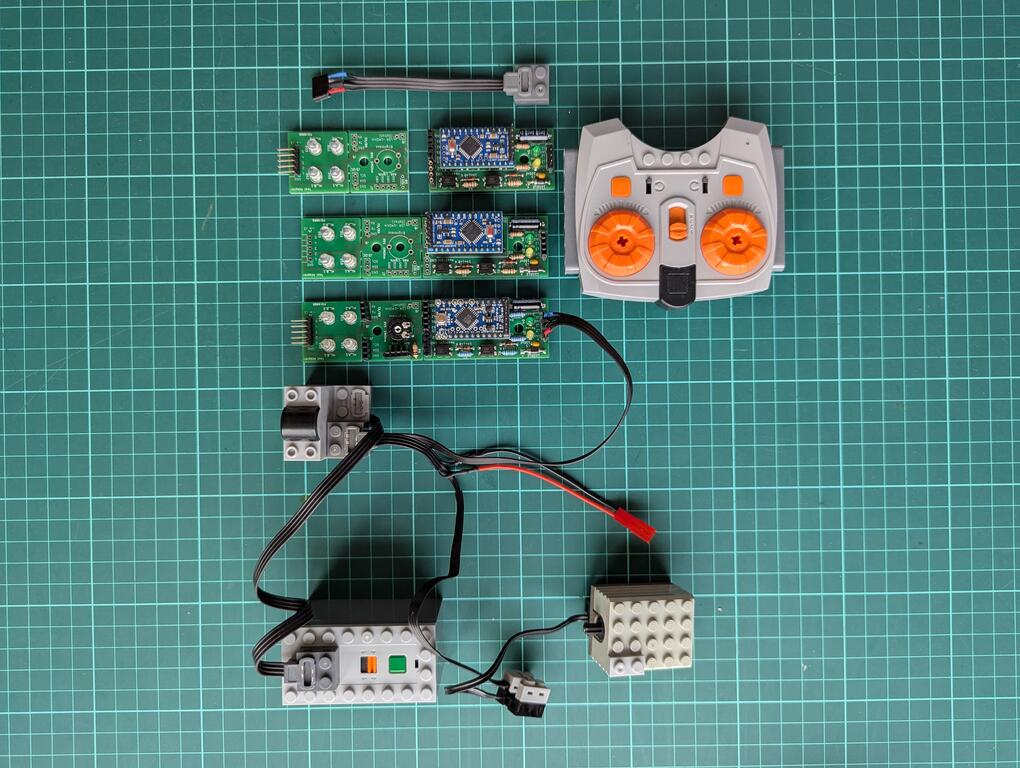
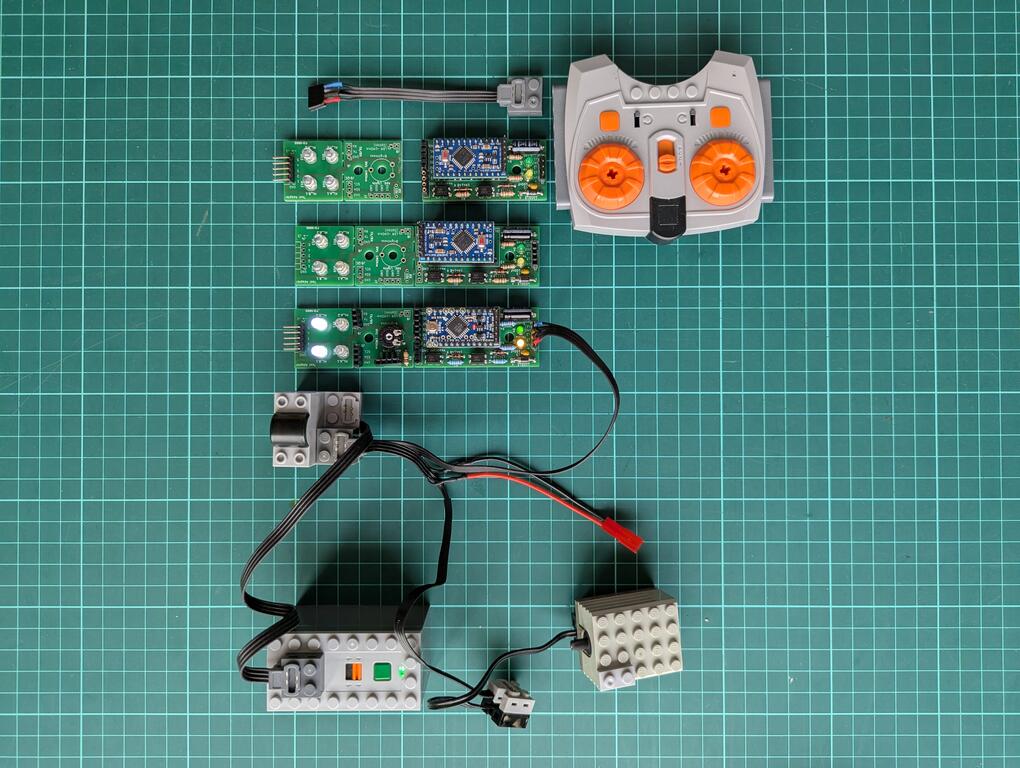
At this point in March 2026, I have a working design = hardware PCB and a working version of the software. The current version 2 (beta) hardware is built and working. Three PCBs were produced, assembled, and tested. The Arduino code was written to fit the actual HW setup, but so far it shows only the very basic function: switching lights according to direction.

I think the project is in a good beta state: real hardware exists, it works, and it is ready for practical testing. My colleague, who originally asked for this circuit for his hobby use, will show and use it in his model train club. I hope for real-life testing. This will give much better input than bench testing alone.

PXL_20260308_111601647_copy

So the current version 2 works, but it is still beta.

Related posts

In the next blog posts I will describe:

Outlook

Maybe there will be a version 3, depending on the input. I also hope that some of the club members will want this hardware as well, so I will design version 3, and this would also be the first DIY kit and the transition from beta to the first “official” version.

PC817 Optocoupler Tester – Lazy Sunday Afternoon Project

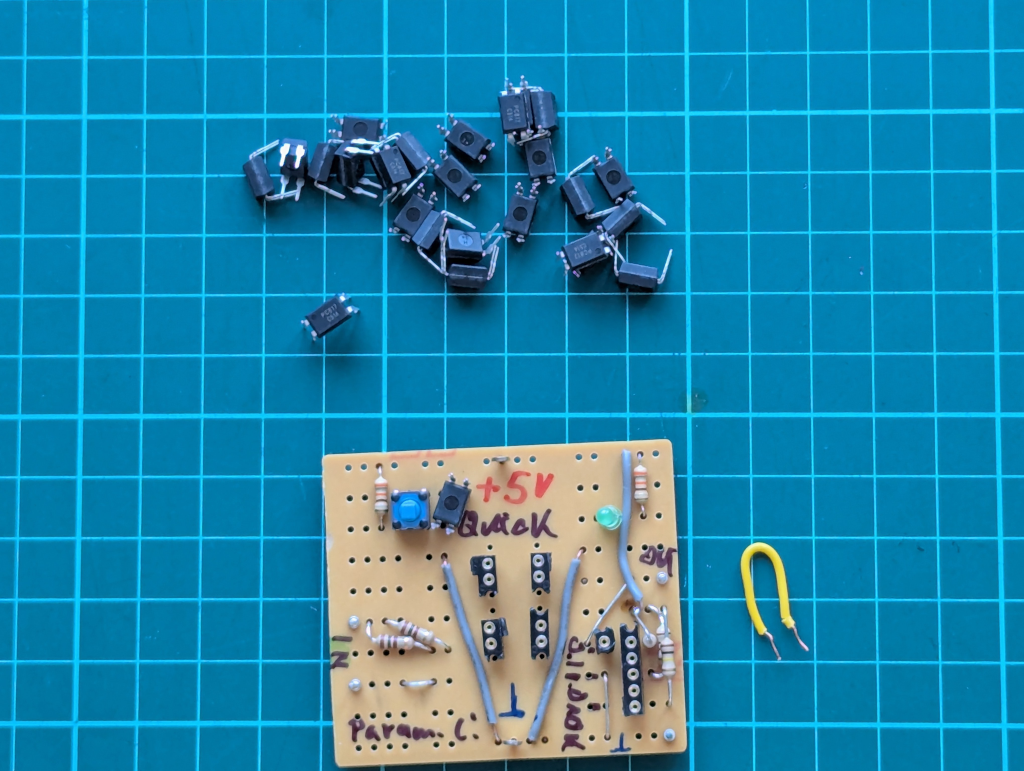
For some upcoming projects, I’ll use the PC817 optocoupler family. But sadly, you don’t always get what you think you’ve bought. So how can you simply check if they work as described in the datasheet? I wanted a quick way to verify parts before building them in.

This small tester consists of two independent circuits, runs on 5 V, and does two simple things:

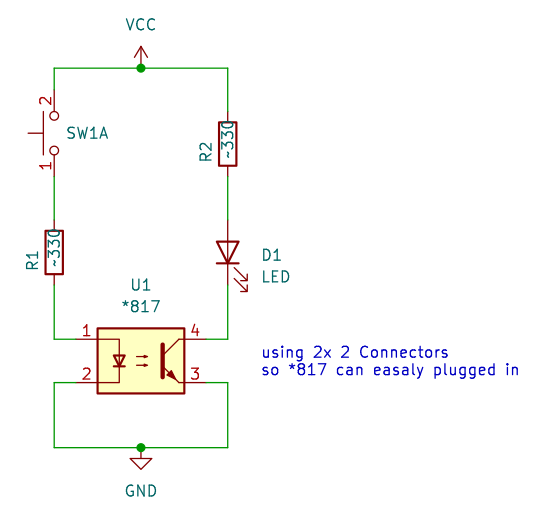
  1. Quick Test – Push the switch, and if the LED lights, the optocoupler basically works.
OptoCoupler_CheckCircuit_QuickManual
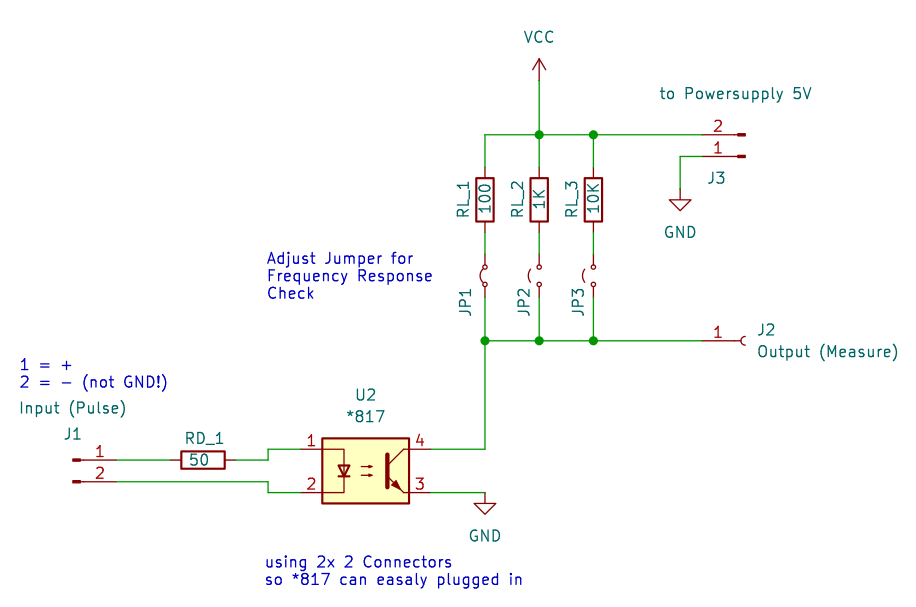
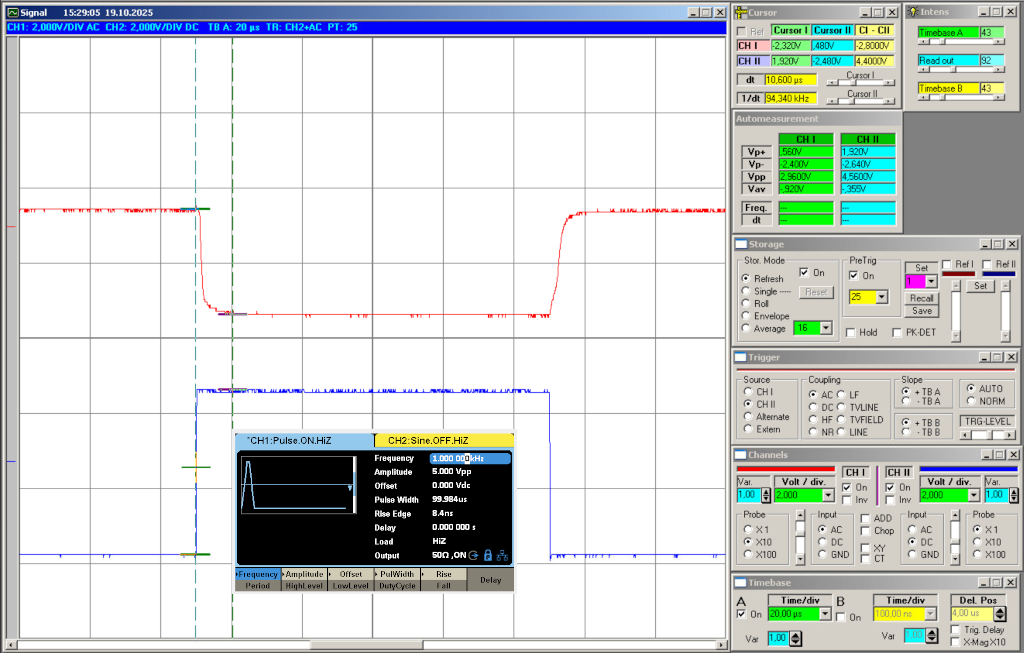
  1. Frequency Test – Based on the circuit from the datasheet. Input impedance is 50 Ω, and the output can be pulled up with 100 Ω, 1 kΩ, or 10 kΩ to see how the device behaves at different frequencies.
OptoCoupler_CheckCircuit_ParameterCheck

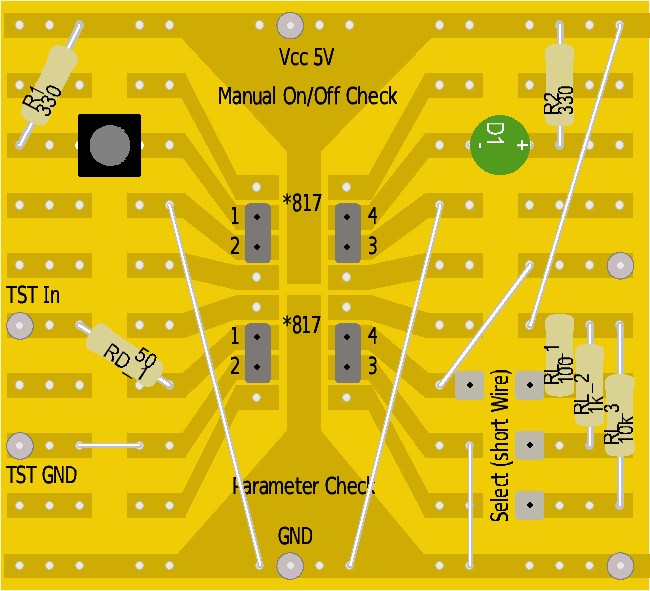
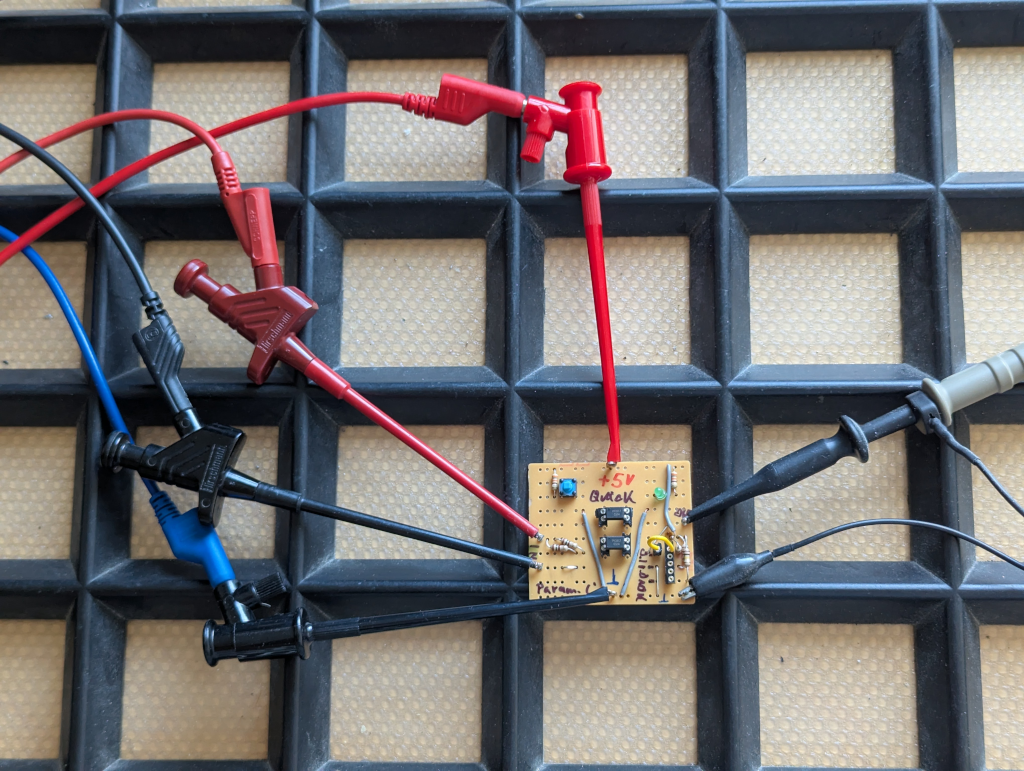
Simple stripboard:

0002-PC817-Series-PhotoCoupler-Tester_SB

That’s it.
It’s not meant to be fancy—just a tiny 2-hour project to get reliable data and a feel for how different PC817 batches respond.
The project data will be on Gitea – ToGo-Lab, Project ID 0002,

As working proof, some simple scope screenshots:

If you’re into optocouplers or small test circuits, feel free to build along or suggest tweaks.
Always happy to hear what others find useful in their own setups. 🙂

Old meter (MXD-4660A), new tricks.

I pulled my veteran DMM, a Voltcraft MXD-4660A, from the drawer to set up my workbench (adding a serial-to-USB converter) and gave it a second tour of duty with QtDMM on Ubuntu. After a bit of searching online what to use under I found the QtDMM project at http://www.mtoussaint.de/qtdmm.htmlm , but appears abandoned. The active fork, I think, is at https://github.com/tuxmaster/QtDMM.

Here’s the final install and setup for my lab computer running Ubuntu 22.04 (Jammy):


Build & Install QtDMM on Ubuntu 22.04 (Jammy)


1) Prerequisites

  • Enable Universe and base tools:

    sudo apt update
    sudo apt install -y software-properties-common
    sudo add-apt-repository -y universe
    sudo apt update
  • Compilers, build tools, VCS:

    sudo apt install -y git build-essential cmake ninja-build pkg-config
  • Qt6 SDK

    sudo apt install -y qt6-base-dev qt6-tools-dev qt6-tools-dev-tools qt6-l10n-tools libqt6serialport6-dev
  • HID API

    sudo apt install -y libhidapi-dev libhidapi-hidraw0
  • OpenGL headers for Qt6Gui/Widgets

    sudo apt install -y libopengl-dev libgl1-mesa-dev libglu1-mesa-dev mesa-common-dev
  • Serial access without sudo:

    sudo usermod -aG dialout "$USER"
  • Log out and back in to apply group membership

2) Get the source and make the script executable

git clone https://github.com/tuxmaster/QtDMM.git
cd QtDMM
chmod +x compile.sh

3) Build

  • Clean build (optional). Also verifies prerequisites are present.
    ./compile.sh clean || true
    rm -rf build CMakeCache.txt CMakeFiles
    ./compile.sh
  • Artifacts land in ./bin/:
    ./bin/qtdmm --version
  • Verify it runs. If not, see Troubleshooting below

4) Install for all users (see §5 for a .deboption)

Preferred:

sudo ./compile.sh install
# now on PATH:
qtdmm --version

5) Alternative: make a .deb

Keeps your system clean and is easy to remove later.

./compile.sh pack
sudo apt install ./QtDMM_*amd64.deb

6) Uninstall

If installed via .deb:

sudo apt remove qtdmm

If installed via compile.sh install:

# run from the same build dir used for the install
sudo xargs rm < build/install_manifest.txt

Troubleshooting:

If you hit errors, try a clean build reset instead of first searching forums. I learned the hard way to make a clean install as a belt-and-suspenders reset, that deletes built objects but keeps the CMake cache.

  • “|| true” lets the sequence continue even if the clean step fails due to a broken config.
  • “rm -rf build CMakeCache.txt CMakeFiles” force-removes any stale out-of-source build dir and any accidental in-source CMake cache:
  • “Final ./compile.sh” does a fresh configure and build:
cd ~/QtDMM
./compile.sh clean || true
rm -rf build CMakeCache.txt CMakeFiles
./compile.sh

Let’s check if it’s running

  • As your regular user, start QtDMM from the command line or via the Ubuntu Dock (search for “QtDMM”):
  • Hint: How to create a Desktop shortcut launcher for ubuntu 22.04
    QtDMM - Running

  • Configure settings for MXD-4660A:
    Setup Voltcraft MXD-4660A

    Final test setup (send a known signal) and the result: MXD getting some imput from generator to prove reading
    QtDMM running, getting Data


Question to readers: Is there Linux software for the old Hameg HM1507-3? I’m currently using a Windows XP VM with very old software.

“Hello World” Project for Tōgō Lab: FireFly Morse Blinker

This is my first hardware project on the new ToGo-Lab.io server.

Some years ago, when I started with AVR/ATTiny programming, I built a tiny Morse “throwie”: one ATtiny, one LED, one resistor, and power-friendly firmware. The goal was to use as few parts as possible to keep it cheap, while still adding a couple of useful functions.

Two main functions: Detect daylight. If it’s bright, sleep; if it’s dark, send a Morse message. The LED doubles as a light sensor.

This is a good restart for my new project home, https://togo-lab.io/, the HW version of a “Hello World” program. So I don’t plan heavy hardware work here, though I may add a small solar cell to stretch battery life. This version adds a supercapacitor and small solar cells and uses the LED as a light detector, so it only blinks in the dark. It’s no longer a throwie, more of a pendant. Hang it where it gets daylight and stays dry. It charges by day and blinks by night.

Yes – I want also a PCB and maybe you will the final result as a little DIY Project on e.g. – Tindie.

But real goal is to define the specs and a simple, repeatable workflow from Idea to real DIY Kit especially for bigger future projects.

This post will evolve as the project advances. I’ll append notes, design decisions, and lessons learned rather than writing a single post-mortem at the end. But don’t expect too much progress too quickly; this is a side hustle. Perhaps in a few years, after I retire, it will become one of my main activities.


What it is

  • DIY-Kit goal: beginner-friendly soldering kit with clear docs and hackable programm (using Arduino IDE).
  • MCU: ATtiny45/85, through-hole.
  • Power: 3–5 V, with solar + supercap option.
  • Behavior: Morse message presets, LED as light sensor for night-only blink.

Process and tooling

Roadmap

  • v0.1: Proto: breadboard + first PCB, single message, speed presets.
  • v1.0: Pilot: build guide, BOM with alternates, pilot of 10 units.
  • v1.1: docs polish, optional brightness setting, minor PCB tweaks.
  • v2.0: Zero Series

How this post will evolve
I’ll update this page with:

  • Schematics, Circuit description,
  • PCB Design, CAD. All you need to build one,
  • Build photos and assembly hints.,
  • BOM changes and sourcing notes,
  • Additional Blog post about the program itself and how to do with Arduino IDE.

Want to get involved?
Suggestions welcome. Open an issue on the repo or email tgohle@togo-lab.io. If you build one, share photos and your timing results—those will feed back into the docs and the next revision.


Schematics, Circuit description,
tbd