Short overview
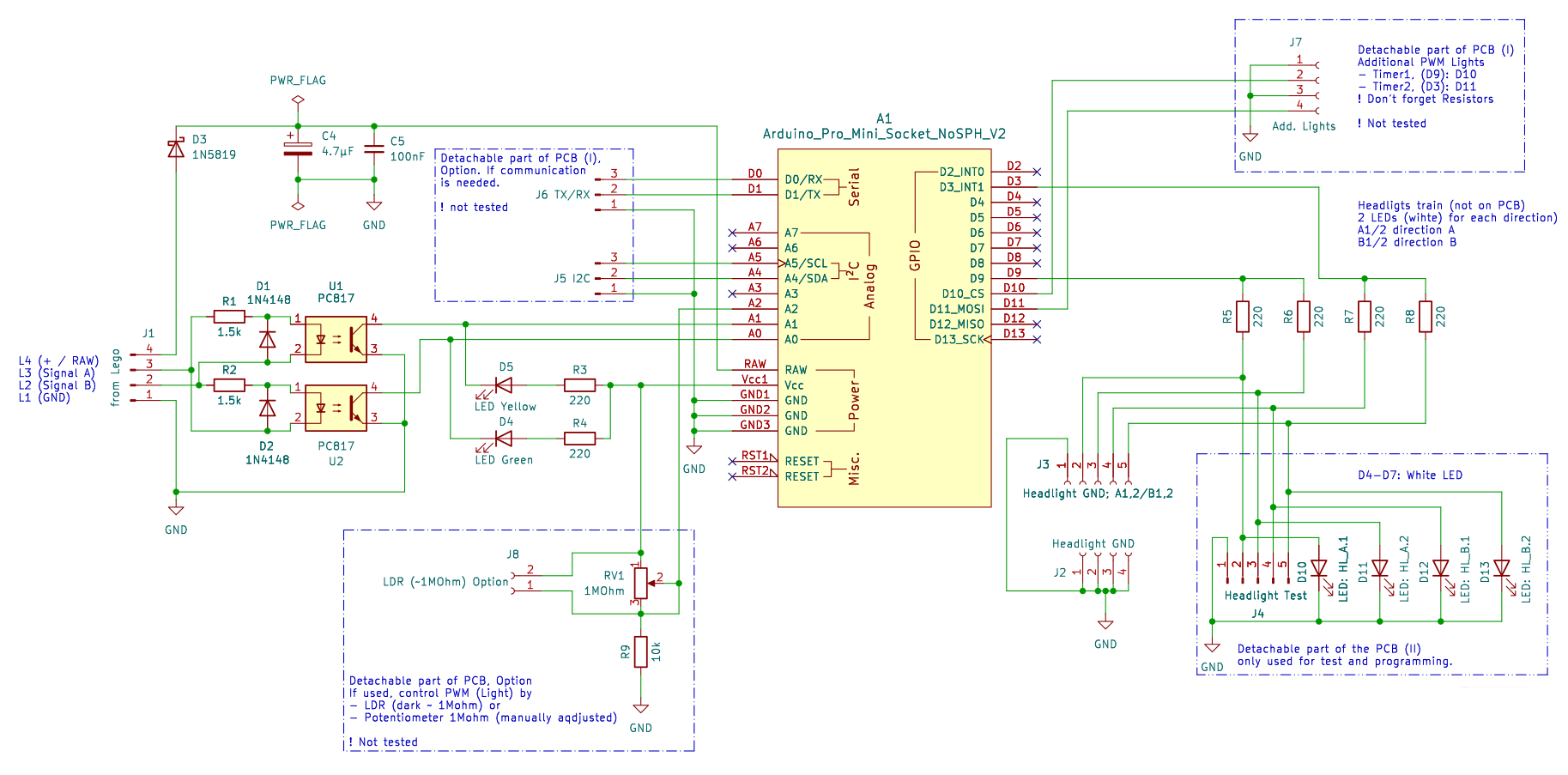
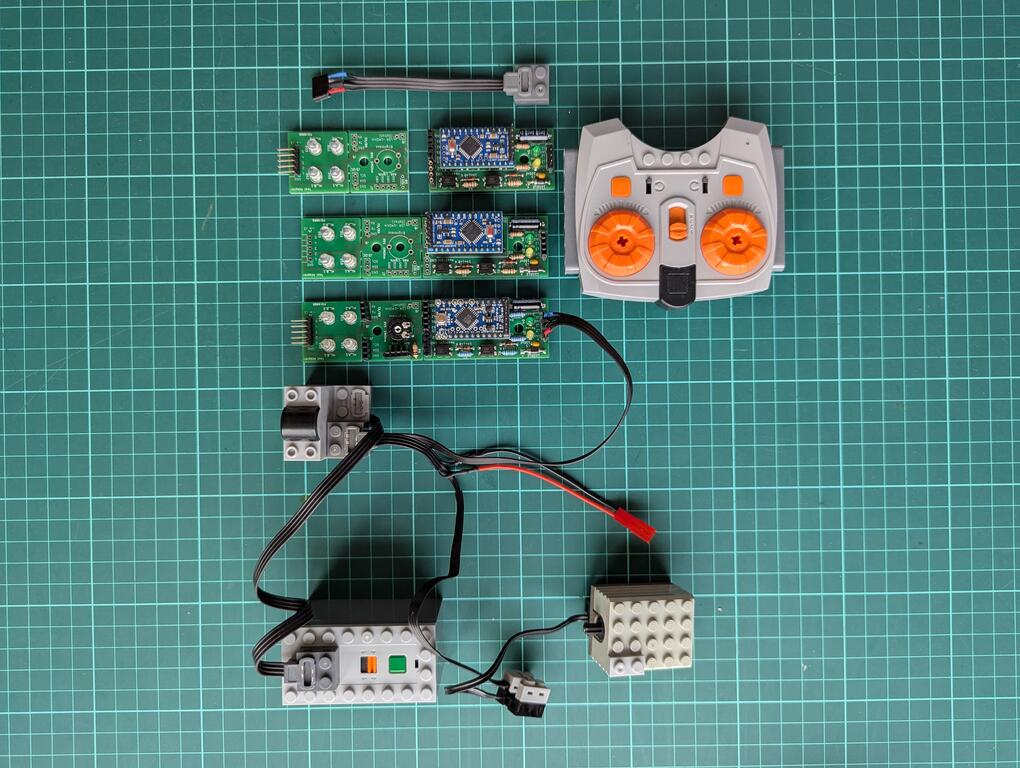
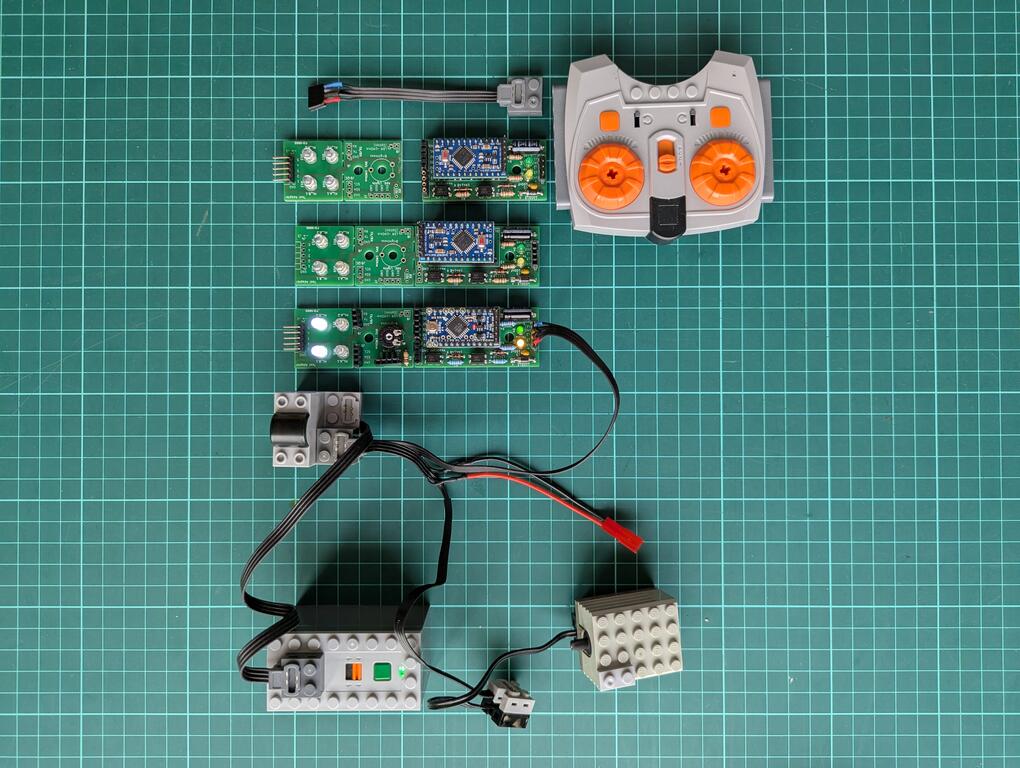
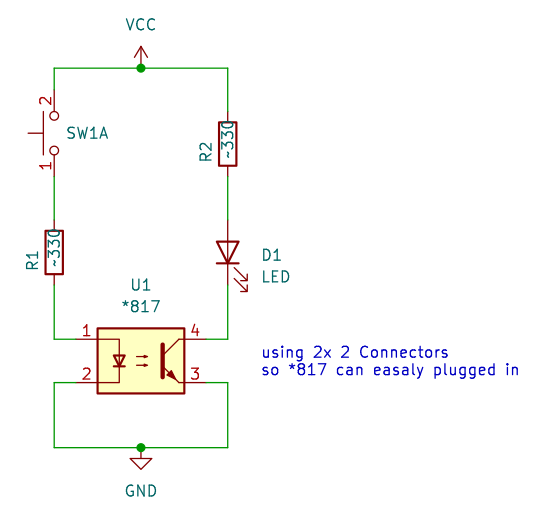
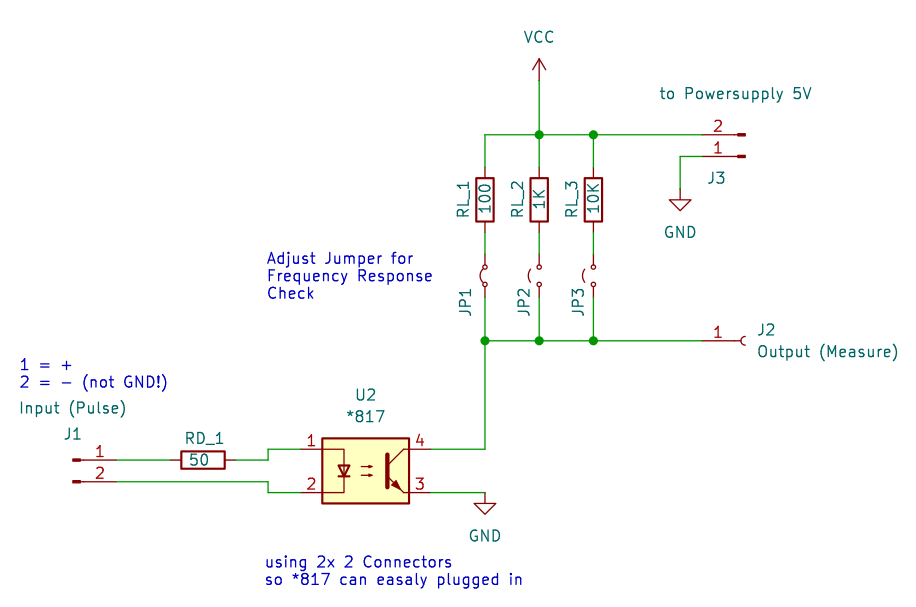
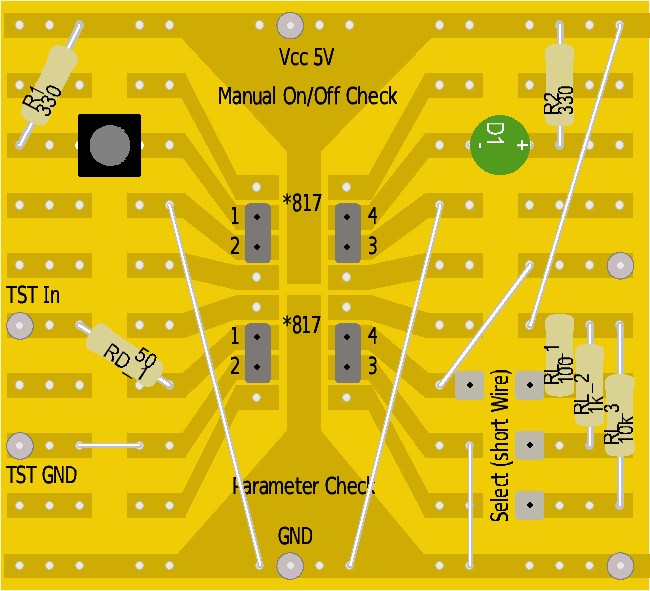
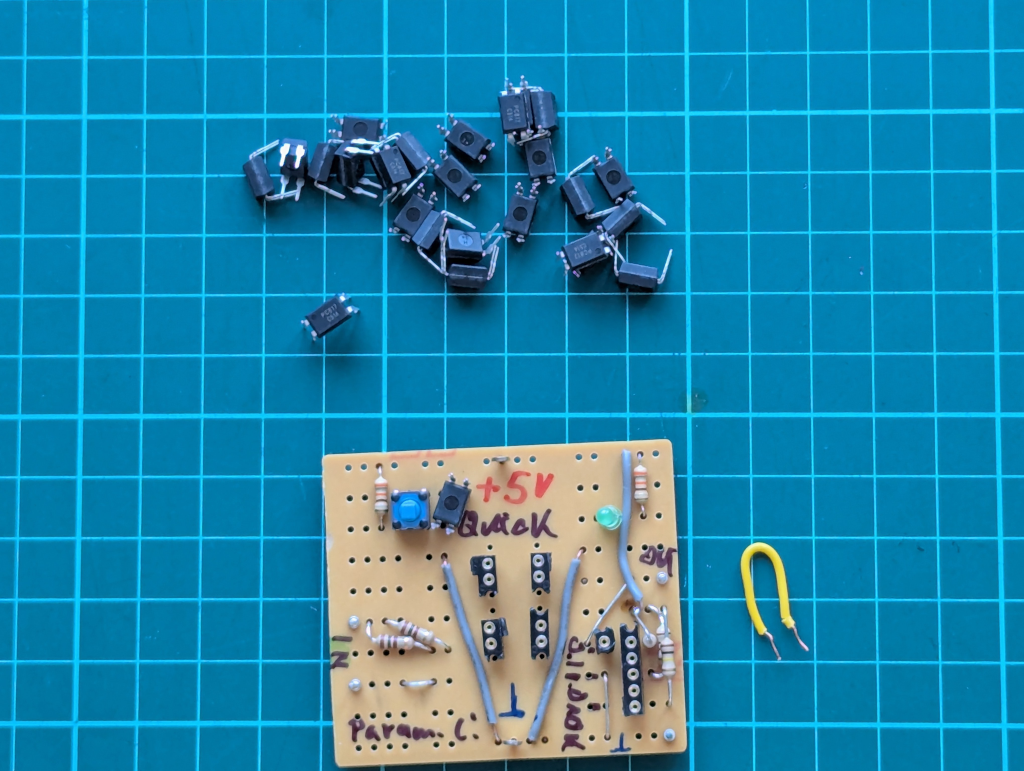
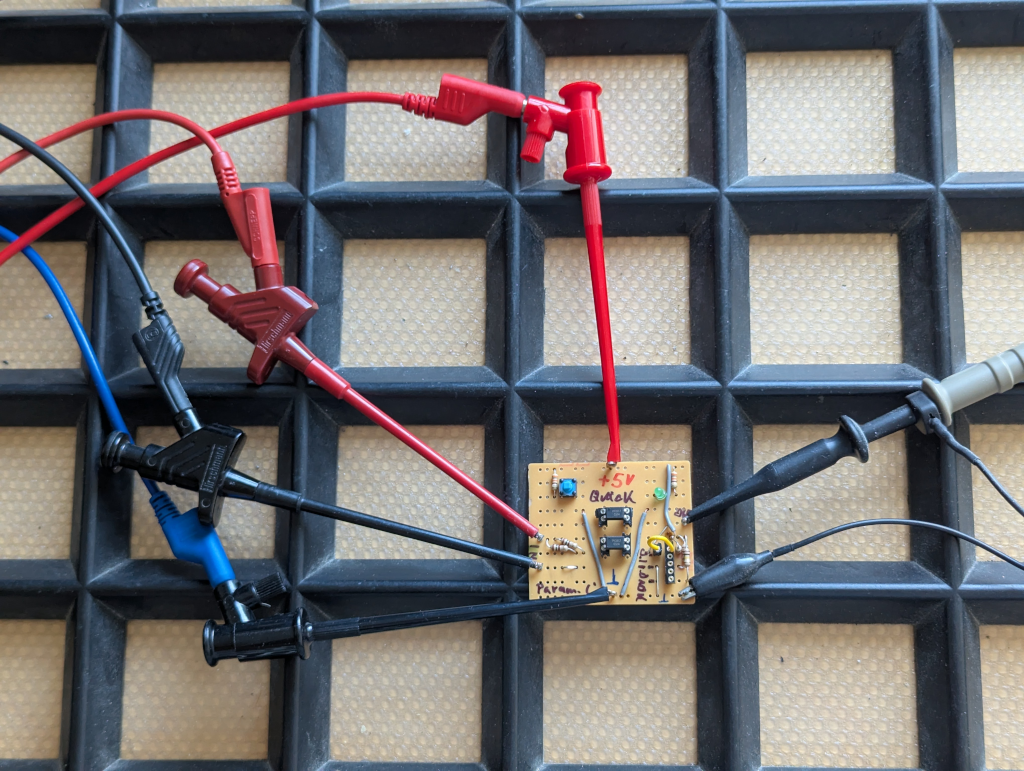
This is the software description of the 電車ベクトル (Train Vector) project (link to overview). The hardware side (link to description) isolates and prepares the motor signal, but the real decision how to light the LEDs is done in software.
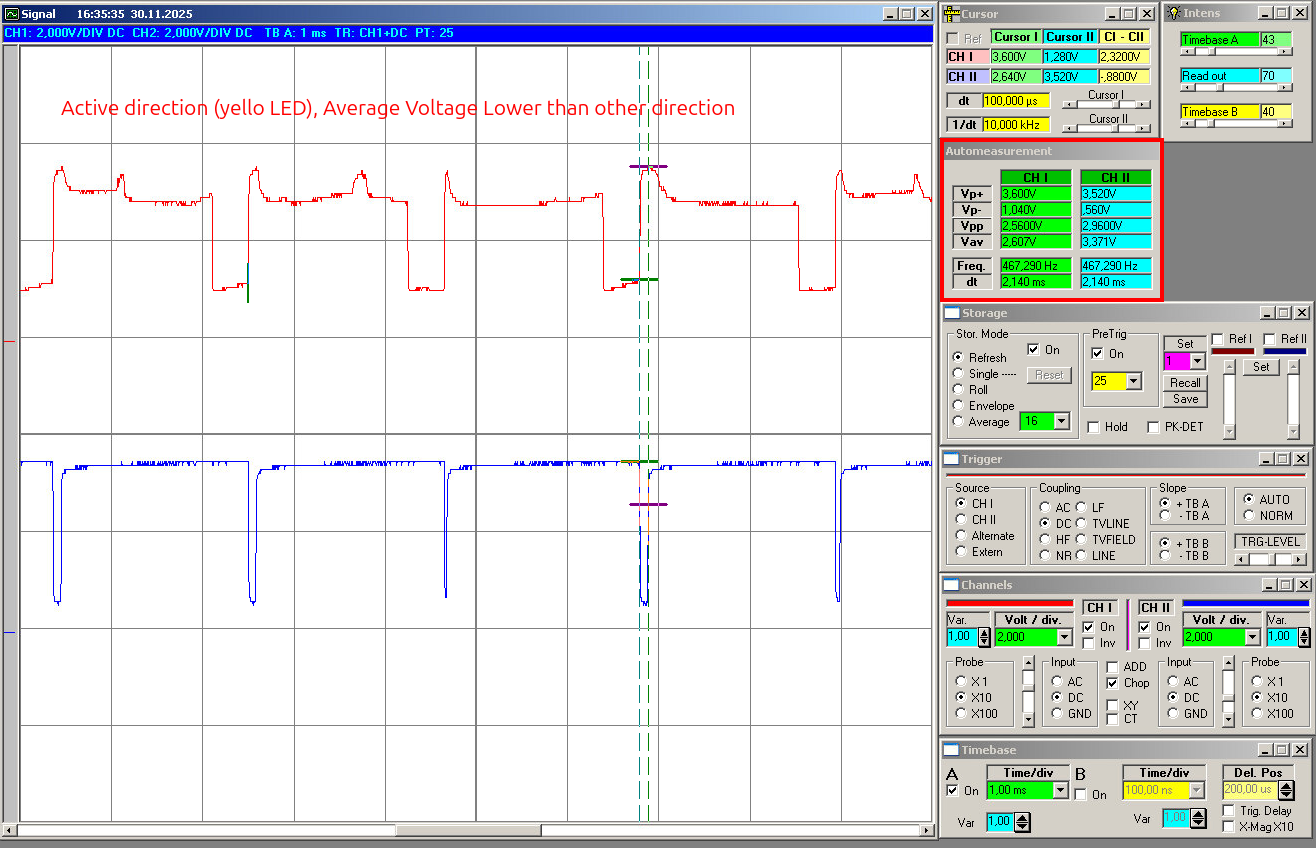
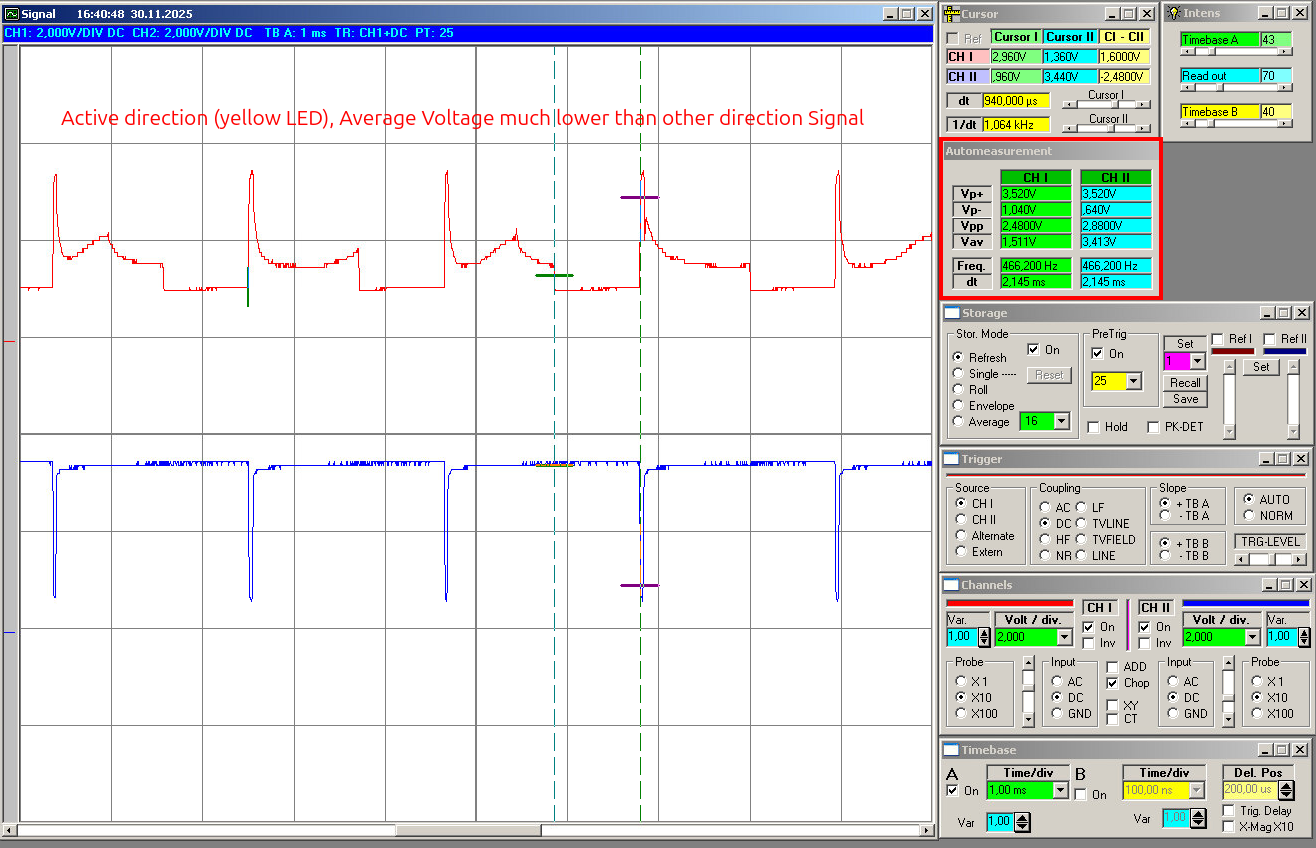
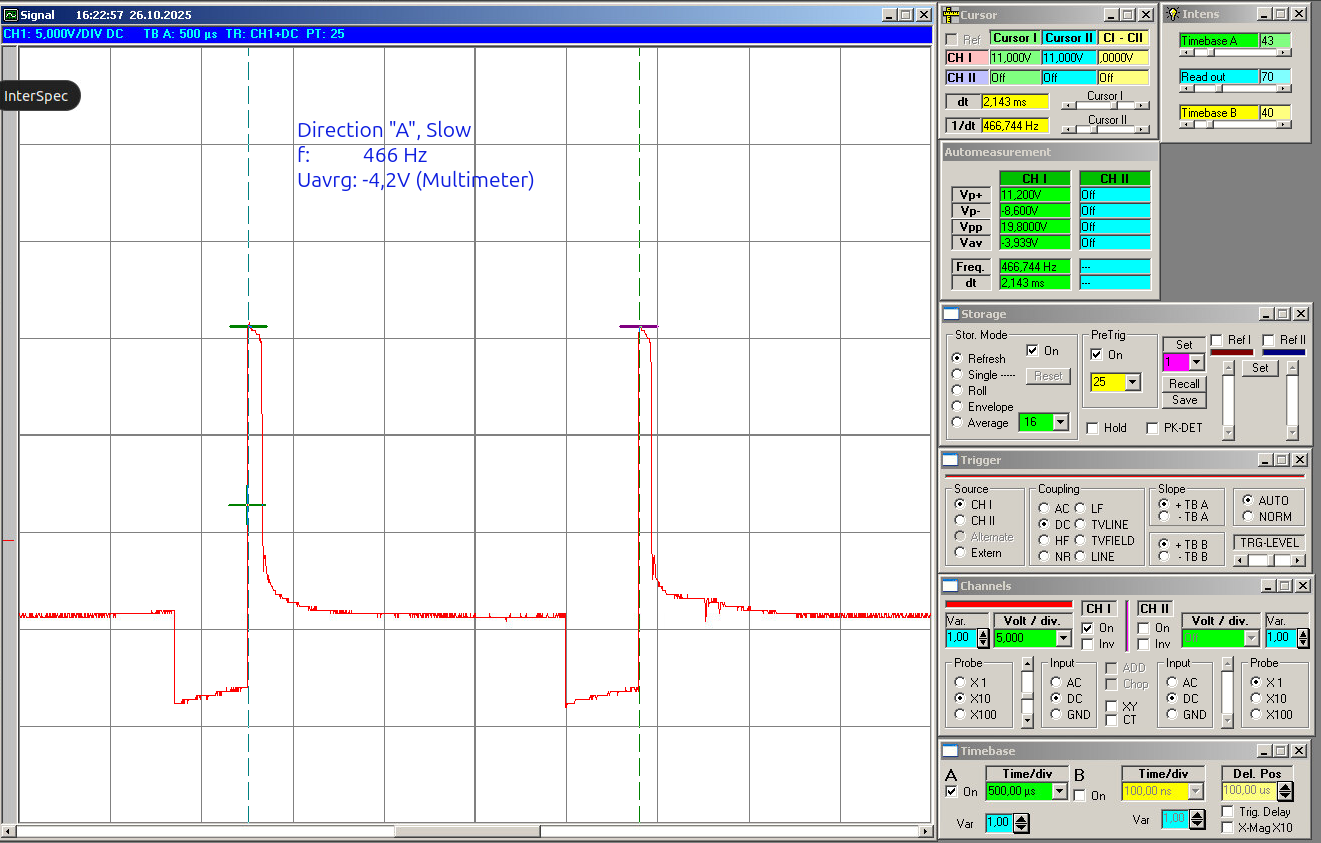
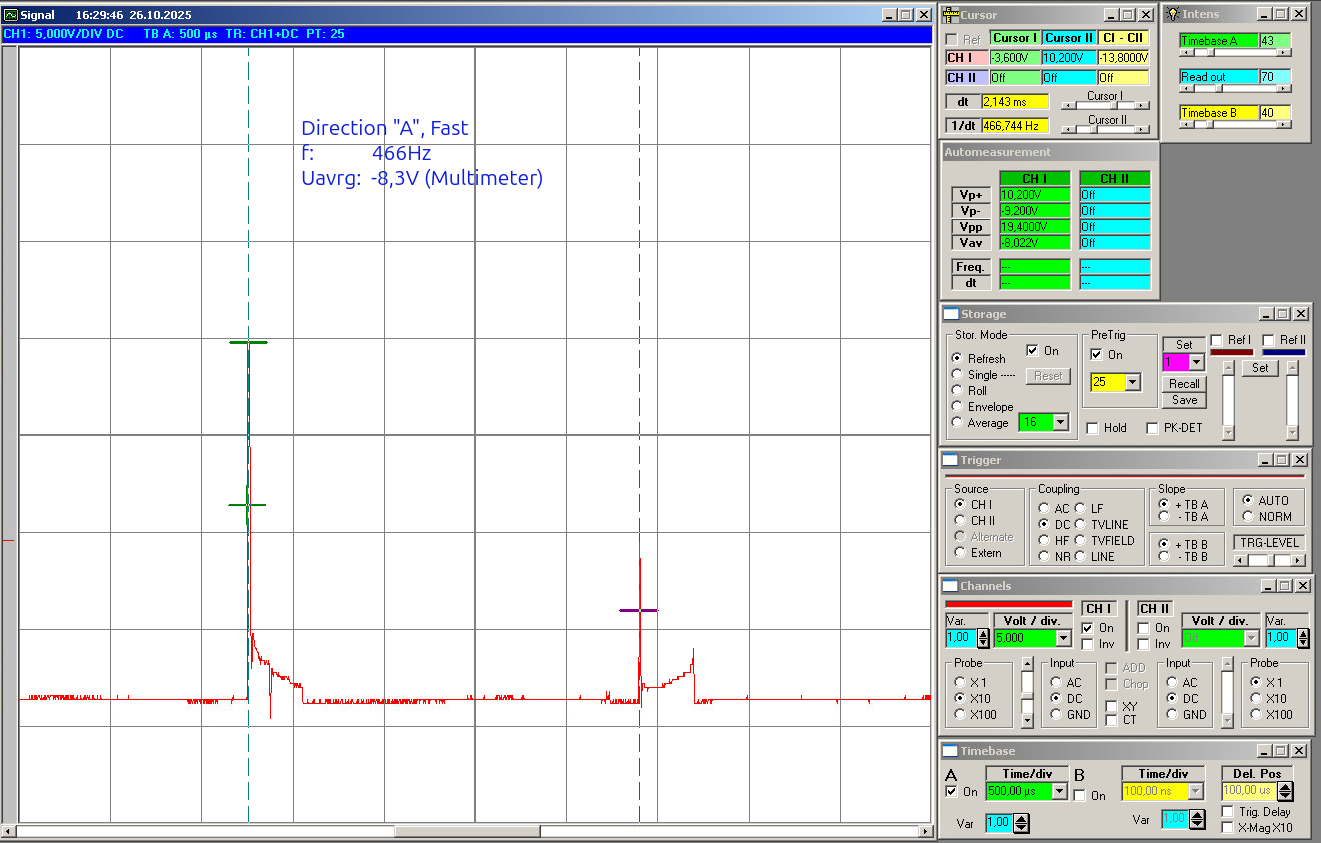
Because the signal comes from a noisy H-bridge motor controller, the software has to do more than just one raw read and one if statement.
The actual Arduino sketch is here in the git subfolder:
https://gitea.togo-lab.io/tgohle/0004-DenshaBekutoru/src/branch/master/firmware/ArduinoTest/DenshaBekutoru-0004_Version-0-2_ProMini_PCB2026-2_V01
In Summary
The software is the part that turns the noisy input from the hardware into a stable direction decision. It does that by:
- averaging the analogue inputs,
- calibrating itself at startup,
- building a threshold from the real idle behaviour,
- using hysteresis,
- remembering the last valid direction,
- driving the outputs accordingly,
Basic idea
The software reads two analogue voltages from the optocoupler output stage:
ADC_PIN_1 = A0ADC_PIN_2 = A1
These two signals represent the processed motor direction information. If the motor is driven one way, one side will dominate. If the motor is driven the other way, than the other side will dominate. So the basic software idea is to compare both voltages and evaluate the difference:
If diff is clearly positive, the software decides for direction 1.
If diff is clearly negative, the software decides for direction 2.
If the difference is too small, the software does not change direction and simply keeps the last valid state.
That last point is the important one. It means the headlights do not start flickering just because the motor is stopped, the signal is weak, or the input is sitting in some noisy neutral area.
First step: averaging the analogue inputs
The first thing, after power on: The sketch averages the inputs over a time window. This is done in:
measureAveragedVoltages()
The code samples both analogue channels repeatedly over:
SAMPLE_WINDOW_MS = 100SAMPLE_DELAY_US = 500
So instead of reacting to one random noisy measurement, the software builds an average value for both channels:
This is one of the most important parts of the program, because the motor signal is not clean. Without averaging, the later direction decision would be much more unstable.
Second step: calibration when nothing happens
At startup, the software assumes there is no real movement yet. That is the moment it uses to adapt itself to the actual build, controller, and wiring. This is done in:
calibrateVdiffThreshold()
The sketch performs multiple averaged measurements at boot:
For each of these measurements it calculates:
This gives the natural mismatch between both channels when no real direction decision should happen yet. Because even in the idle case both channels are usually not perfectly identical, the software does not assume zero. Instead, it measures the real baseline. The measured values are sorted, and then the median is taken:
VdiffBaseline = median(|V1-V2|)
I think this is a good choice, because the median is less sensitive to single bad spikes than a simple average. From this baseline, the code builds the real decision threshold:
VdiffThreshold = max(VdiffBaseline * 1.5, 0.03V)
So the threshold is:
- adapted to the real hardware setup
- increased by a margin
- never allowed to go below a minimum floor
This is exactly the part that should help the board work with different train builds and different controllers without having to hard-code one fixed voltage value.
Third step: threshold and hysteresis
Once the baseline threshold is known, the software creates two limits:
These are derived from the calibrated threshold:
T_hold = 1.0 * VdiffThresholdT_enter = 2.0 * VdiffThreshold
This creates a small hysteresis system. The idea is:
- if the signal difference is very small, hold the old direction
- if the signal difference is clearly strong, allow a direction change
- in between, still hold the old direction
So the software does not switch direction the moment the signal only barely crosses one border. That makes the behaviour much more stable.
The state machine
The actual state machine is very simple and handled in:
updateDirectionFromVoltages()
mainly State machine (direction memory) + Hysteresis (Version A)
I use two thresholds:
T_hold (smaller): below -> treat as neutral and HOLD stateT_enter (larger) : above -> allow direction change (set by sign)
Behavior:
If |diff| = T_enter : set direction by signElse (between) : hold direction
Presets (implemented as multipliers of the calibrated VdiffThreshold):
T_hold = 1.0 * VdiffThresholdT_enter = 2.0 * VdiffThreshold- Inputs derived from v1, v2: diff = v1 – v2
This means the software remembers the last valid direction and does not jump around in the weak or noisy range.
Output logic
Once the state machine has decided the direction, the outputs are updated in:
The output pins are:
LED_DIR1_PIN = 3LED_DIR2_PIN = 9
The code first switches both outputs off and then activates only the matching one:
- direction
2 -> D3 on
- direction
3 -> D9 on
So at the moment the output stage is simple:
- one direction = one output active
- the other direction = the other output active
This is enough for the basic headlight function.
The sketch also includes a small startup blink sequence in:
initBlinkSequence()blinkLED()
That is mainly useful to see directly that the board is alive after power-up.
Main loop behaviour
After setup and calibration, the loop is very simple:
- measure both averaged input voltages
- update the direction state
- apply the outputs
- print debug values to serial
- wait a short time
The delay at the end is:
So this is not written as a super-fast control loop. It is written as a stable and easy-to-observe detection loop, which makes sense for this kind of project stage.
Serial output for debugging
For debugging, the code can print all important values to serial output.
This is controlled by:
The function is:
The output includes:
v1v2|v1-v2|VdiffBaselineVdiffThresholdT_holdT_enter- current
direction
For development this is useful, because it makes it much easier to see why the software made a certain decision and how well the calibration worked.
Overview of the used functions
Here is a short overview of the most important functions in the sketch:
-
blinkLED()
Small helper to blink one output LED
-
initBlinkSequence()
Startup blink pattern to show the board is alive
-
applyDirectionOutputs()
Switches the output pins according to the current direction state
-
measureAveragedVoltages()
Reads both analogue inputs over a time window and calculates averaged voltages
-
sortFloatArray()
Sort helper used during calibration
-
medianOfSortedFloatArray()
Returns the median value from the sorted calibration data
-
calibrateVdiffThreshold()
Measures the idle mismatch at startup and creates the calibrated threshold values
-
updateDirectionFromVoltages()
The actual direction decision logic with hysteresis and direction memory
-
serialPrintAll()
Prints all relevant measured and calculated values for debugging
-
setup()
Initialises serial, pins, calibration, startup blink, first direction update
-
loop()
Repeats measurement, state update, output update, and debugging output